What's the difference between the three paths — fuzzy match, exact join, and diff?
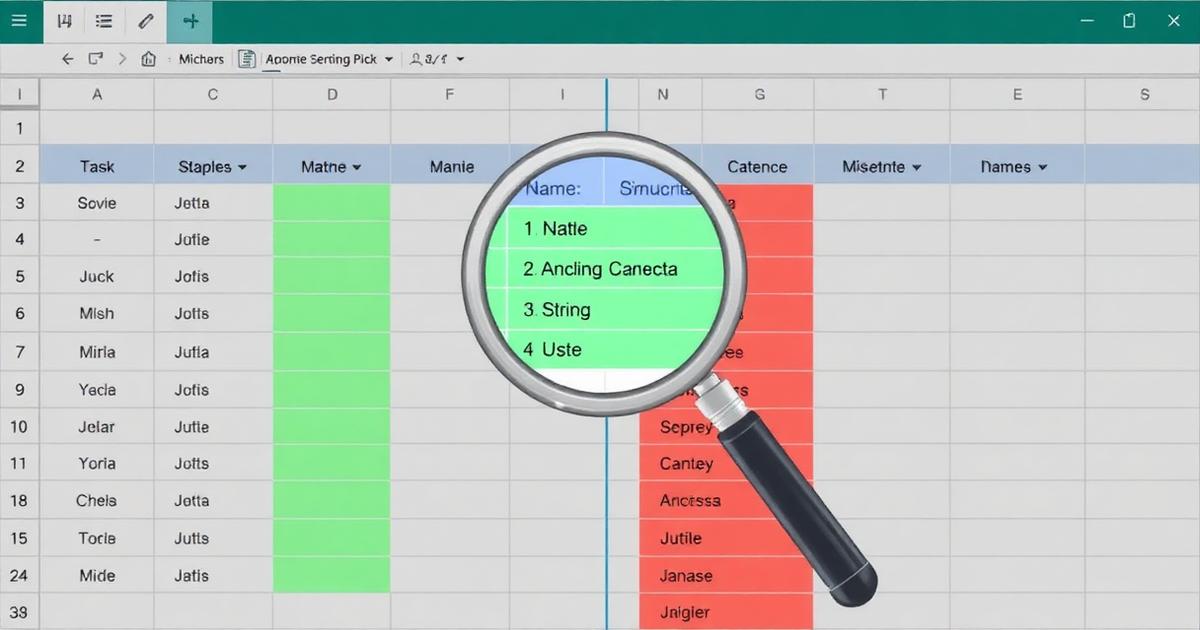
- Fuzzy match pairs rows across two files when the values mean the same thing but aren't identical — "Acme Inc." matches "ACME, Incorporated". Use it when you're reconciling messy text like company or contact names across two systems.
- Exact join is a faster VLOOKUP/XLOOKUP — every File A row is matched to File B on a shared exact key (email, customer ID, SKU) and File B columns are pulled in. Use it when both files share a clean identifier and you want to enrich File A with extra columns from File B.
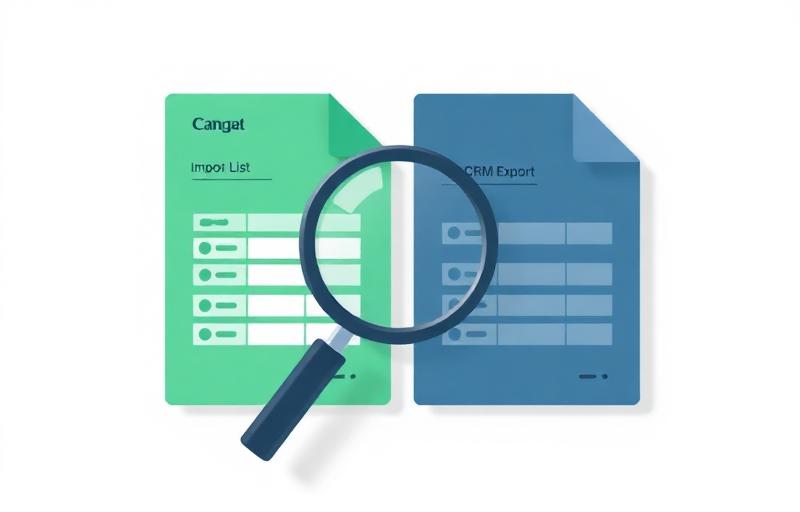
- Diff treats File A as the old version and File B as the new version of the same dataset. It surfaces added rows, removed rows, and rows where specific cells changed. Use it when you're comparing two snapshots of the same list — last month's CRM export vs this month's, for example.
How does Clean pick which path to use?
When you upload both files, Clean inspects the headers, a sample of the rows, and the overlap between the two files. It looks for clean shared keys (suggesting an exact join), near-identical schemas with row-level differences (suggesting a diff), or messy text columns that won't match exactly (suggesting fuzzy match). The recommended path is shown with an "AI pick" badge on the tab, along with the suggested columns and threshold.
What if Clean picks the wrong path?
You can switch paths at any time — the three tabs at the top of the configuration step are always available, and switching is free. Clean's recommendation is a starting point, not a lock-in. You can also tune the columns, threshold, and other settings on any path before running, and re-run with different settings as many times as you like before deciding to download.
What is fuzzy matching?
Fuzzy matching is a way of comparing two pieces of text — usually names, companies, addresses, or other short strings — based on how similar they are, not whether they're identical. Where an exact match treats "Microsoft Corp" and "Microsoft Corporation" as completely different, a fuzzy match scores them between 0 and 1 and flags them as the same entity when the score crosses a threshold.
It's what makes it possible to deduplicate or reconcile real-world data, where the same person or company is almost always spelled in several slightly different ways across systems.
How does the reconcile tool actually find matches when names look different?
VLOOKUP and XLOOKUP only catch matches when two values are character-for-character identical. "Microsoft Corp" and "Microsoft Corporation" are different strings, so VLOOKUP returns #N/A.
The reconcile tool compares how similar two records are, not whether they're identical. It scores every File A row against File B with a number between 0 and 1, and anything above your threshold is flagged as a match. Casing, punctuation, abbreviations, and business suffixes (Inc., LLC, Corp.) are normalised automatically before the comparison runs.
Selecting a second column on each side — e.g. name + company — combines both signals into one match decision. That's how "Jen Walsh at Acme Corp" in File A correctly matches "Jennifer Walsh at Acme Corporation" in File B, even though neither column is an exact match on its own.
What's the difference between deduplicating and reconciling two lists?
Deduplication finds duplicate records within a single file — two rows in the same spreadsheet that represent the same contact or company. Reconciliation compares two separate files — checking which rows in your new list (File A) already exist in your reference list (File B), and which are genuinely new.
Use Clean when you have one messy file to clean up before importing to your CRM. Use the reconcile tool when you have a new list — a trade show export, an Apollo download, a vendor list — and want to check it against an existing database before importing.
What's the difference between the reconcile tool and VLOOKUP?
VLOOKUP only matches on exact values — "Jen Walsh" and "Jennifer Walsh" return no match. The reconcile tool scores similarity between strings, so name variants, abbreviations, and company formatting differences are all caught. The reconcile tool also matches on multiple columns simultaneously, so "Jen Walsh at Acme Corp" correctly matches "Jennifer Walsh at Acme Corporation" even though neither field is identical on its own.
What's the difference between the reconcile tool and XLOOKUP?
XLOOKUP is more flexible than VLOOKUP — it can search left or right and return cleaner errors — but the underlying match is still exact. "Acme Corp" against "Acme Corporation" is still no match. The reconcile tool replaces the exact-match step with a similarity score (0–1), so all the common variants — abbreviations, casing, punctuation, entity suffixes, and minor typos — are caught without writing wildcard formulas or helper columns.
What's the difference from Power Query's fuzzy merge?
Power Query's fuzzy merge is Windows-only Excel desktop, slows dramatically past a few thousand rows, has a single similarity slider with limited control, and doesn't natively split your output into matched vs net-new. The reconcile tool runs in any browser, scales to 100,000 rows per file, lets you tune threshold and entity-suffix stripping independently, and ships three output formats out of the box: matched, unique-to-File-A (net-new), and a fully annotated copy of File A.
How do I do a fuzzy VLOOKUP between two Excel files?
Open the reconcile tool, drop both .xlsx files into the uploader, pick the column to match on in each file (the column names don't have to match — you select them independently per file), and run. The reconcile tool returns each row from File A with its best fuzzy match in File B and a similarity score. Unlike VLOOKUP, it catches "Jen Walsh" matching "Jennifer Walsh" and "Microsoft Corp" matching "Microsoft Corporation" — no formulas, no Power Query, no add-in.
Can I match contacts across two files when only one column overlaps?
Yes. The reconcile tool lets you pick matching columns independently in each file, so you can match File A's "Full Name" column against File B's "Contact" column even though the column names differ. You can also select multiple columns per file (e.g. name + company on both sides) — the tool combines the similarity across all selected columns into a single match decision, which dramatically reduces false positives versus matching on one column alone.
How do I find which contacts on a trade-show list are already in our CRM?
Export your CRM contacts to CSV, drop both your trade-show list and the CRM export into the reconcile tool, and pick the column(s) to match on (typically contact name plus company, or email). You'll get a net-new file (contacts safe to import — no match in the CRM) and a matched file (already exist — review or suppress before import). Fuzzy matching catches the same person spelled differently across the two systems, which is the failure mode of every email-based dedupe check.
Which file should be File A and which should be File B?
File A is the new list you want to check — a trade-show export, an Apollo or ZoomInfo download, a vendor or partner list, anything you're about to import. File B is your existing reference — your CRM export, customer database, or current contact list. The output is structured around File A: which rows in A already exist in B (matched, suppress before import) and which rows in A are net-new (safe to import). Get this backwards and the output won't make sense, so pick A = new list, B = source of truth.
What similarity threshold should I use?
The default is 0.80 for reconciliation — slightly higher than dedupe defaults — because a false positive here means suppressing a genuinely new contact, which is more damaging than missing a duplicate. Go higher (0.88+) if you want to be conservative. Go lower (0.75) if your data is clean and you want to catch more variants.
What do the three output formats mean for reconciliation?
Matched file: rows from File A that matched something in File B, with the best match and similarity score added — for review or suppression before import. Unique-to-File-A file: rows from File A that had no match in File B — these are net-new, safe to import. Annotated file: every row from File A with three added columns — match status, similarity score, and the best match found — useful if you want to make your own decisions on borderline cases.
How is pricing calculated for the reconcile tool?
Pricing is based on the combined row count across both files — File A rows plus File B rows, excluding headers. For example, a 400-row trade show export checked against a 2,000-row CRM export counts as 2,400 rows total. Free for combined totals up to 500 rows with no account required. For larger combinations: $1.99 up to 3,000 rows combined, $4.99 up to 10,000 rows, $9.99 up to 25,000 rows, $19.99 up to 50,000 rows, and $29.99 up to 100,000 rows. You can preview your results before paying — payment is only required to download.
Can the reconcile tool match on multiple columns?
Yes. Select matching columns independently in each file (the column names don't need to match across the two files), and the tool combines the similarity across all selected columns into a single match decision. "Jen Walsh at Acme Corp" matching "Jennifer Walsh at Acme Corporation" works because the combined name and company similarity is strong even though neither field is an exact match on its own.
Is my data safe to upload?
Both files are processed in memory and deleted immediately after your session. They are never written to permanent storage, never shared, and never used for any purpose other than generating your results. You can verify this in our
privacy policy.
What file formats are supported?
CSV, XLSX, and XLS. Maximum 10 MB per file. If your files are larger, contact us — we can run them via the API.