
How to Join Two CSV Files Online in 2026 — Not Just Stack Them Together
Search for an online CSV merge tool and you will find dozens of options.
Most of them perform the same operation: they place the rows from one file underneath the rows from another.
That is useful when both files have the same columns and you want one longer file. But it does not help when you need to match related rows and bring information from the two files together.
For example, you may have:
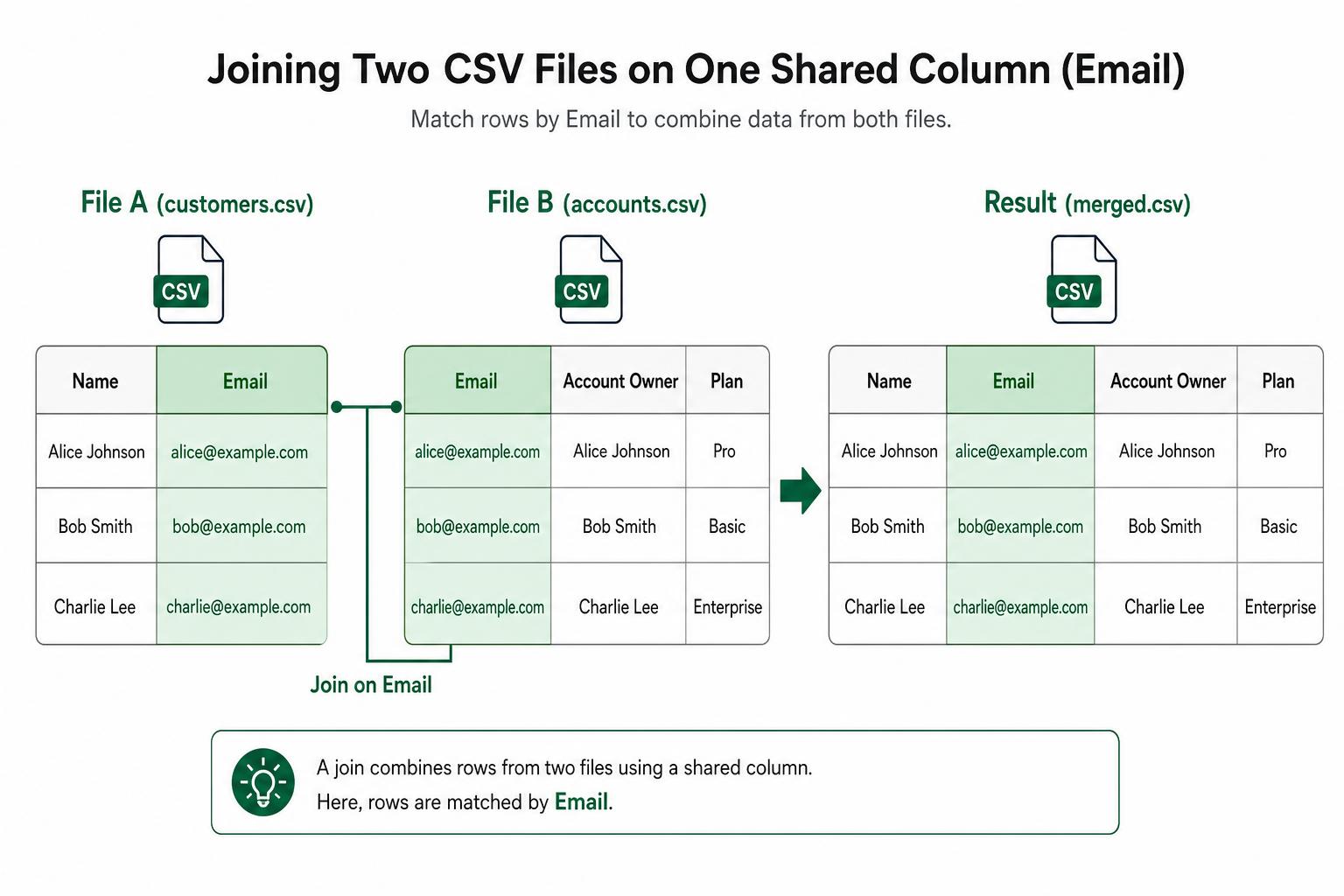
- one file containing customer names and email addresses; and
- another containing email addresses, account owners, and subscription plans.
You do not want to stack the files. You want to match each customer using their email address and add the relevant account information to the first file.
That is a file join.
Stacking files versus joining files
There are three different operations people commonly mean when they say "merge two files". Visualising them side by side is the fastest way to see which one you actually need.
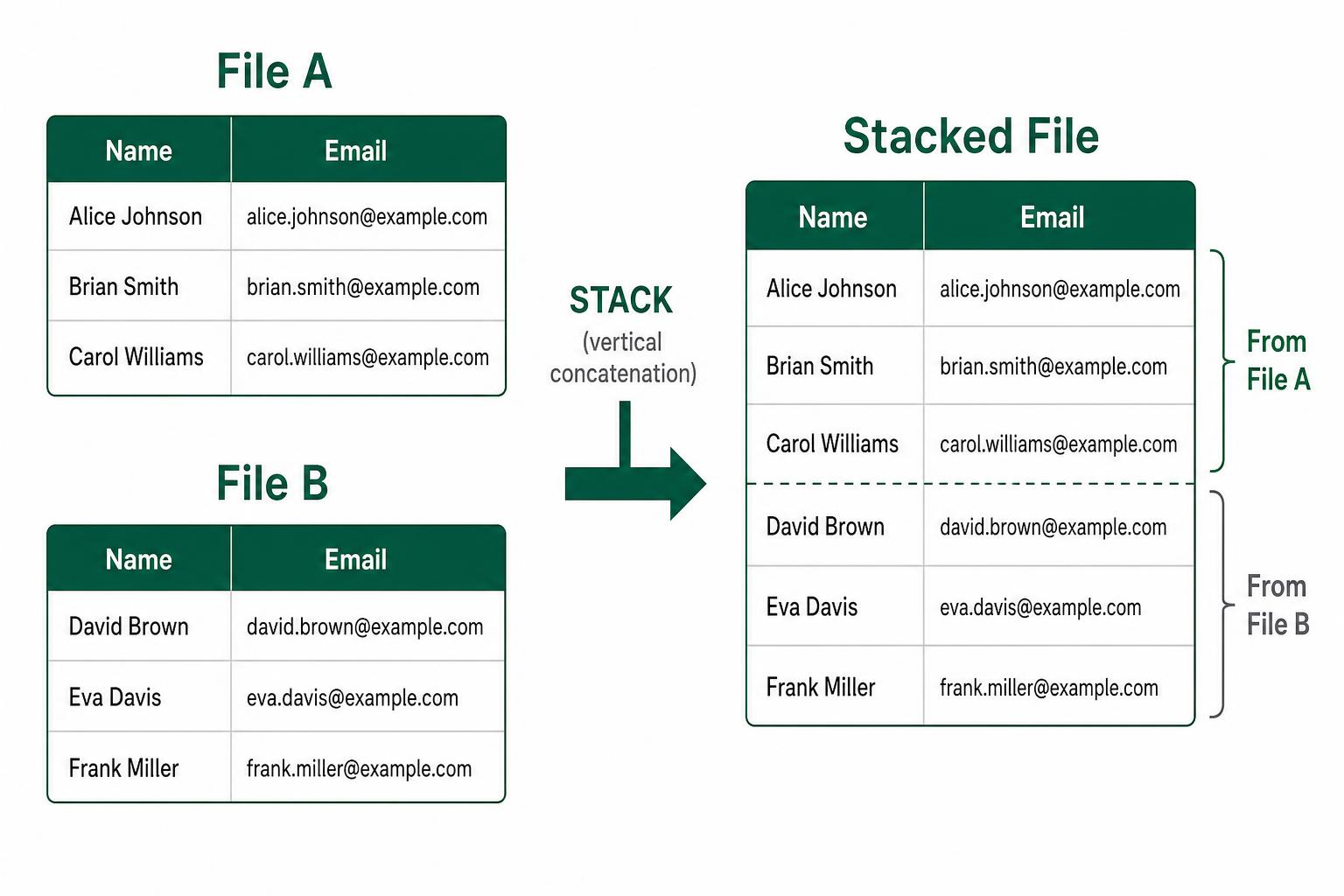
1. Stack (vertical concatenation)
Both files have the same columns. The rows of File B are placed underneath the rows of File A. No matching happens.
2. Join on one shared column
The two files share one reliable identifier (such as email or customer ID). Rows are matched on that column, and columns from File B are added to File A.
3. Join on multiple columns (composite key)
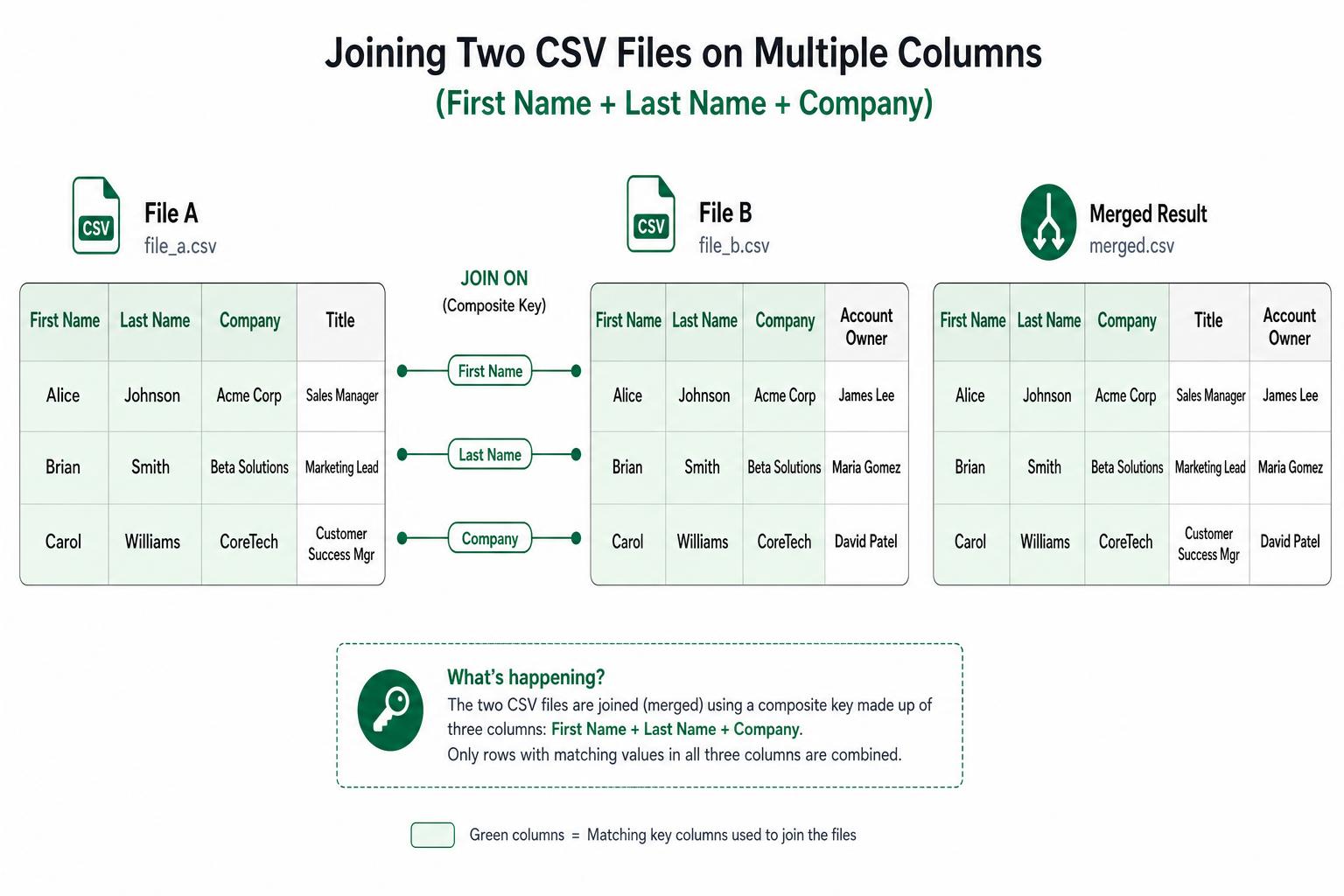
When no single column uniquely identifies a row, several columns are used together — for example, first name + last name + company. A row matches only when all selected values match.
| Operation | What it does | Typical use |
|---|---|---|
| Stack or concatenate | Places the rows from File B underneath File A | Combine monthly exports with the same columns |
| Join using one column | Matches related rows and adds columns from File B | Add account information using email or customer ID |
| Join using several columns | Matches rows using a combination of fields | Match using first name, last name, and company together |
Many tools use the word "merge" for the first operation, even though users may actually be looking for the second.
What we found when testing online CSV merge tools
We tested the browser-based tools appearing for searches such as:
- merge CSV files online;
- join two CSV files;
- combine CSV files by column; and
- match two CSV files.
Most tools only stacked the rows from the two files.
A small number claimed to support matching rows using a shared column, but they did not successfully produce the expected output in our tests.
We also could not find another online tool that could match rows using several columns together.
Clean was the only online tool we found that successfully joined files using either one column or a combination of multiple columns.
Why matching on several columns matters
The easiest way to join two files is through a reliable shared value such as:
- email address;
- customer ID;
- order ID; or
- product code.
Real files do not always contain one clean, unique identifier.
Two customer lists may contain names and companies but no shared customer ID. A name alone may not be unique enough to identify the correct record.
In that case, the files may need to be matched using a combination such as:
first name + last name + company
Clean lets you select several columns and use them together as one matching key.
A row is joined only when the selected values match across both files. This avoids relying on one incomplete or non-unique field.
Among the browser-based tools we tested, Clean was the only one that offered this directly.
Join your two files with Clean →
Upload your two CSV or Excel files and join them in seconds — no signup, no install, 500 rows free.
Try it for free →How Clean joins two files
Clean accepts CSV and Excel files directly.
It reads the column names and samples the data, then recommends:
- whether the files should be joined, compared, or fuzzy-matched;
- which column or combination of columns connects them; and
- which information from File B should be added to File A.
You can review and change the recommendation before running the operation.
There are no formulas to write, no prompts to construct, and no need to copy your data into separate text boxes.
For straightforward files, the process takes seconds.
Can Excel combine the files instead?
Yes.
Excel can match rows between two files using formulas or Power Query.
The difficulty is not that Excel is incapable of doing it. The difficulty is knowing how to configure the operation correctly.
You need to:
- choose the right Excel feature;
- identify the correct matching columns;
- decide which file's rows should be preserved;
- select which columns should be added;
- handle rows without a match;
- check that duplicate values have not created extra rows; and
- verify that no records were dropped.
Matching on several columns usually requires additional setup.
Excel remains a good option when you already know how to perform the operation and want complete manual control.
Clean is designed for people who want the result without first learning spreadsheet formulas or configuring Power Query.
Can ChatGPT or another AI assistant do it?
Yes.
You can upload both files to an AI assistant and explain how you want them combined.
This can work, but you still need to describe the task clearly, including:
- which rows belong together;
- which columns should be used for matching;
- which file should be preserved;
- which information should be added; and
- how rows without a match should be handled.
AI assistants can also hallucinate, make incorrect assumptions, or produce an output that looks plausible but is wrong.
That makes verification especially important when you are not sure yourself what the correct result should look like.
The risk becomes greater when:
- column names are unclear;
- several columns are needed to identify a match;
- duplicate values exist;
- unmatched rows need special handling; or
- you do not know what the correct spreadsheet operation is called.
Clean removes all of that ambiguity.
It reads the files, recommends the operation and matching columns, and gives you a structured result to review.
There is no prompt to construct and no technical terminology required.
What if you do not know whether the files should be joined?
People often use words such as "merge," "compare," "match," and "combine" interchangeably.
They may describe several different tasks:
- adding information from one file to another;
- finding rows that appear in only one file;
- comparing two versions of the same spreadsheet;
- matching names that are spelled differently; or
- removing duplicates within one file.
Clean supports all of these workflows.
After reading the files, it recommends whether you should:
- join them using shared columns;
- compare added, removed, or changed rows;
- fuzzy-match similar records; or
- deduplicate a single file.
You can accept the recommendation or select a different operation.
This makes Clean a safer option when you know what result you want but do not know which spreadsheet feature, formula, or technical process will produce it.
Clean compared with common alternatives
| Capability | Basic CSV merger | Excel | General AI assistant | Clean |
|---|---|---|---|---|
| Stack files vertically | Yes | Yes | Yes | No |
| Match rows using one column | Usually no | Yes | Yes | Yes |
| Match rows using several columns | No | Requires setup | Requires detailed instructions | Yes |
| Recommend matching columns | No | No | Sometimes | Yes |
| Compare added, removed, changed rows | No | Requires setup | Yes | Yes |
| Match inconsistent names or text | No | Limited | Yes | Yes |
| Remove duplicates within one file | Sometimes exact only | Exact by default | Yes | Yes |
| No formulas required | Yes | No | Yes | Yes |
| No prompt required | Yes | Yes | No | Yes |
How to join two CSV files online
- Upload your two CSV or Excel files.
- Review and confirm the operation and matching columns Clean recommends.
- Voilà — you are done. Download the finished file.
Small files can be processed free without creating an account. Larger files use flat per-file pricing.
Conclusion
Most online CSV merge tools do not match related rows. They simply place one file underneath another.
To bring information from two files together, you need to match their rows using one or more shared columns.
Excel and AI assistants can perform this operation, but they require you to understand or clearly describe the setup and then verify the result.
Clean is designed to remove that work.
It reads both files, recommends how they should be matched, supports combinations of several columns, and produces a downloadable result in seconds.
It was also the only online tool we found that successfully supported both single-column and multi-column joins.
And when joining is not actually the right operation, Clean can recommend a file comparison, fuzzy match, or deduplication workflow instead.
Join two CSV or Excel files with Clean →